PolyCarver
Because Flat is Boring
Slicers are great when you need a straight plane cut.
PolyCarver is for the cuts that need to follow the shape.
Draw curved, freeform cuts through 3D models so you can hide seams, plan assemblies, split large prints, and break up organic forms without opening Blender for one simple edit.
Beta Version 2 Update
Overview
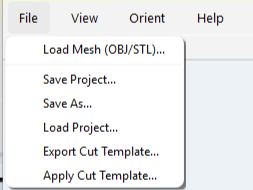
To start, the main menu includes File, View, Orient, and Help.
Below the menu are quick view controls for the six default camera positions: Front, Back, Left, Right, Top, and Bottom.
The File menu lets you load a mesh, save or load a project, and export or apply cut templates. Cut templates store the cuts you create, so you can load another mesh and apply the same cut setup again. Templates are saved in world space, meaning the cuts stay where they were placed rather than following the mesh if it moves.
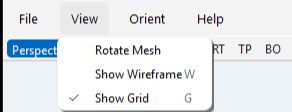
The View menu lets you rotate the mesh, toggle wireframe mode, and show or hide the ground grid.
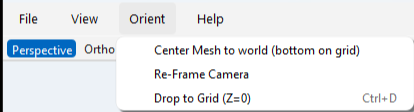
The Orient menu helps reset the scene. You can center the mesh, re-frame the camera, or drop the mesh to the ground plane.
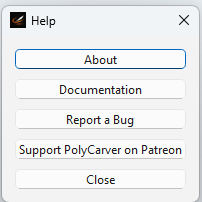
The Help menu includes app information, documentation, bug reporting, and a Patreon link if you want to support future development.
How to Cut
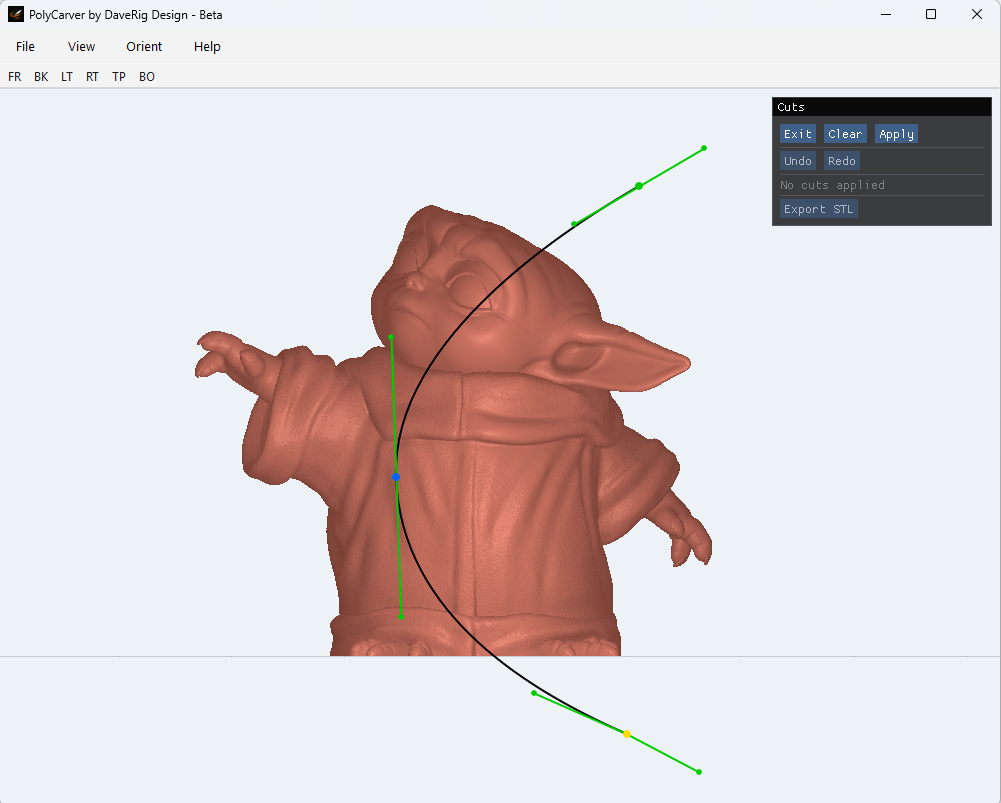
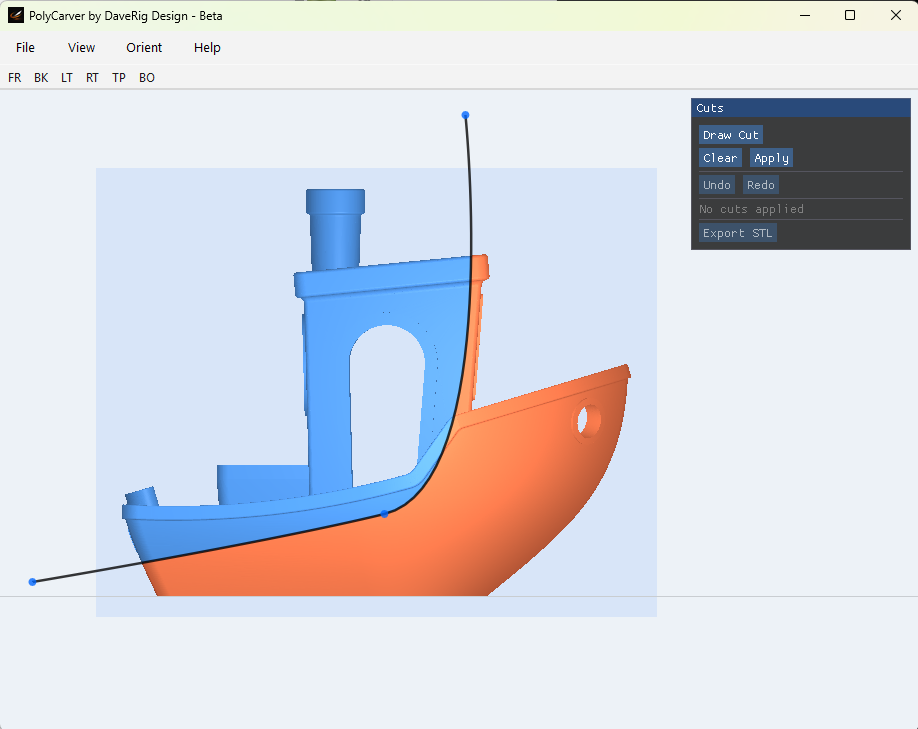
Press Exit to leave draw mode and preview the cut setup.
The blue plane shows the camera plane from when the cut was started.
The red surface shows the cut path that will be used when you apply the cut. This lets you orbit around the model and inspect the cut before committing.
Click Draw Cut again to adjust the spline, Clear to delete it, or Apply to execute the cut.
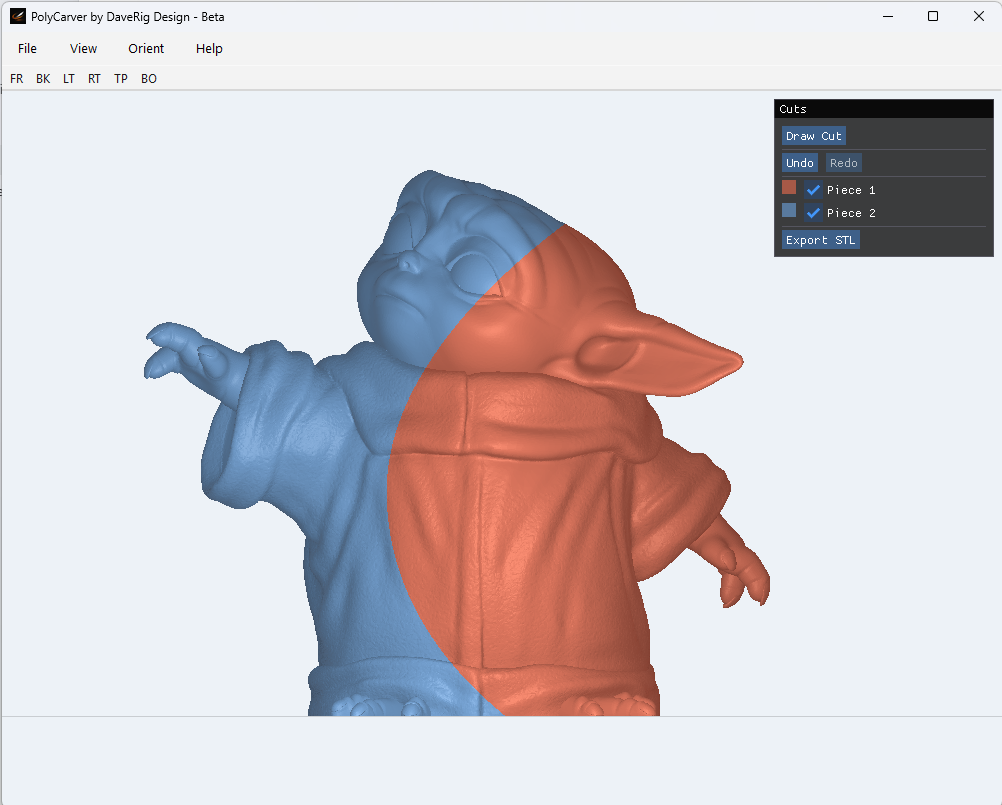
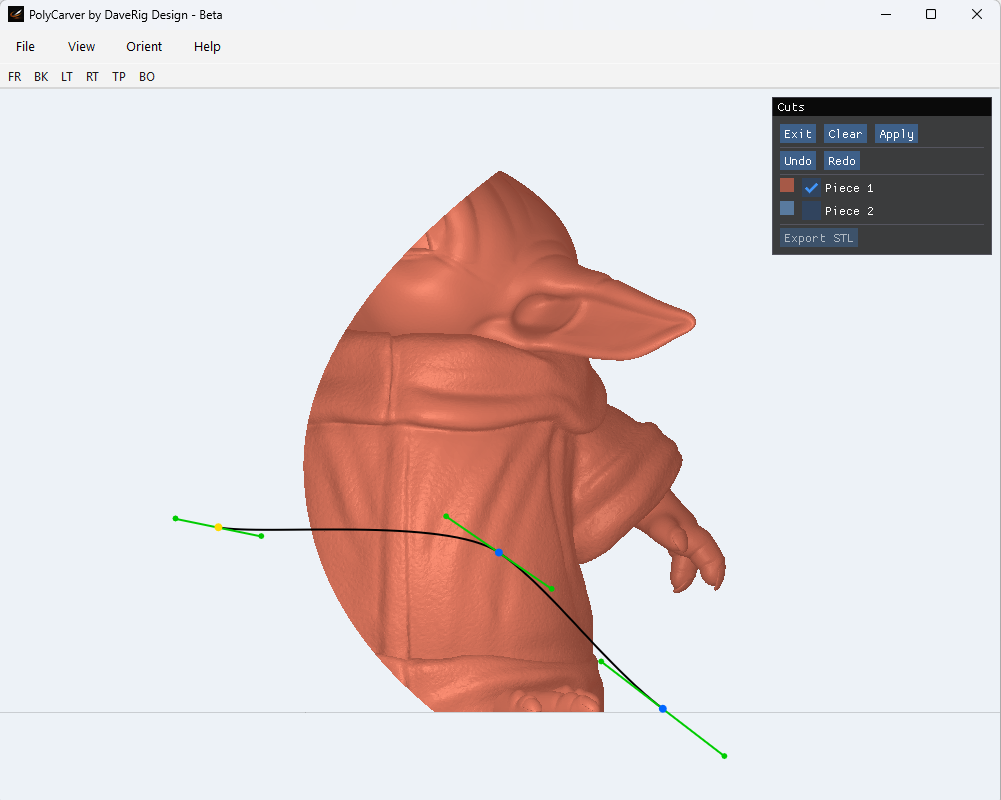
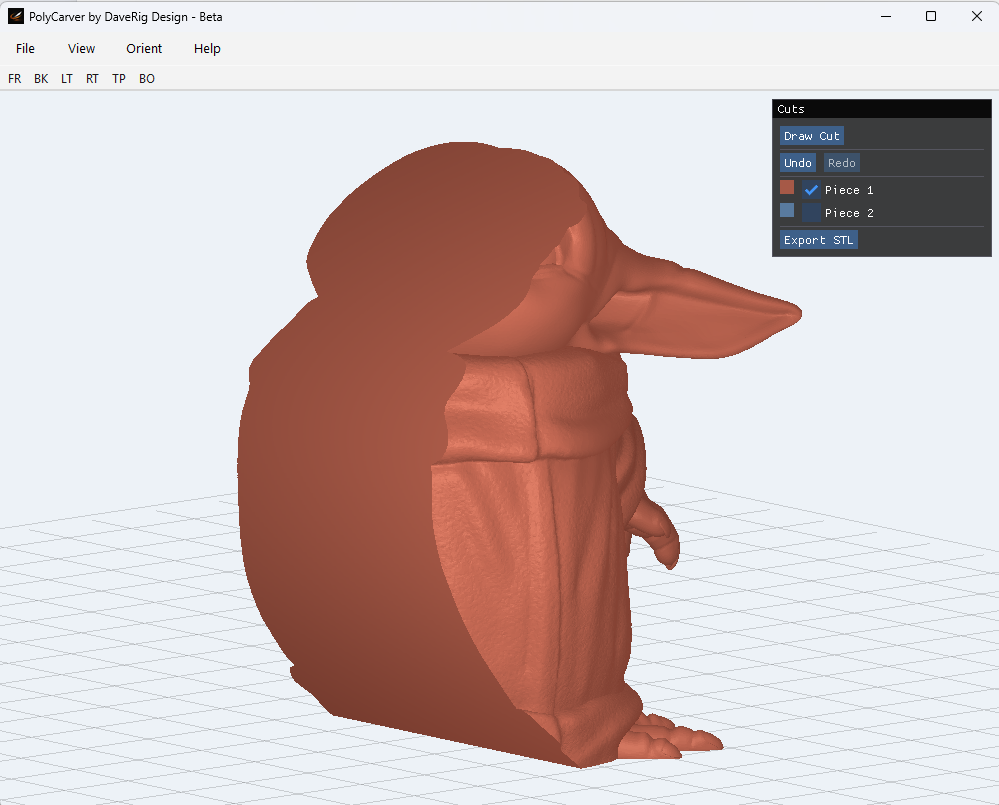
You can hide pieces and continue cutting only the parts that remain visible. Hidden pieces will not be affected by the next cut.
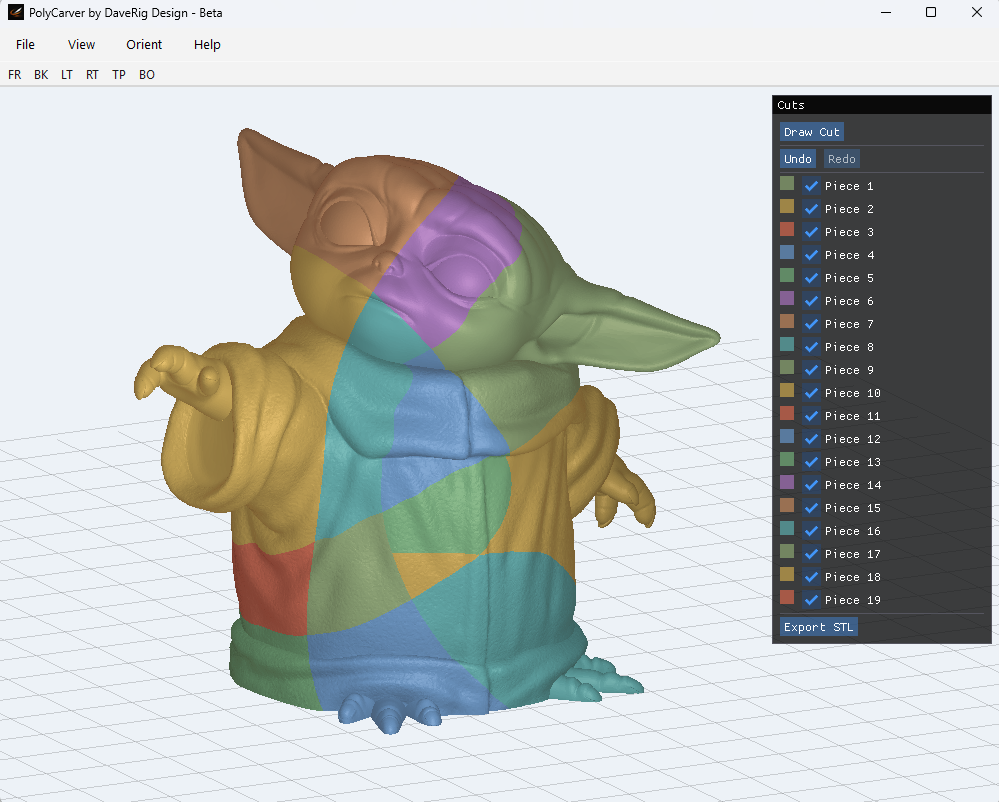
That’s the basic PolyCarver workflow.
If you run into a bug or find a model that behaves strangely, use the Report a Bug option inside the app. I review those reports and use them to prioritize future fixes.
Beta Note
PolyCarver is still in beta. It works best with clean STL or OBJ files, and some complex or damaged meshes may produce imperfect caps or unexpected results.
If a model behaves strangely, try repairing it first in your slicer, Microsoft 3D Builder, Meshmixer, or another mesh repair tool.
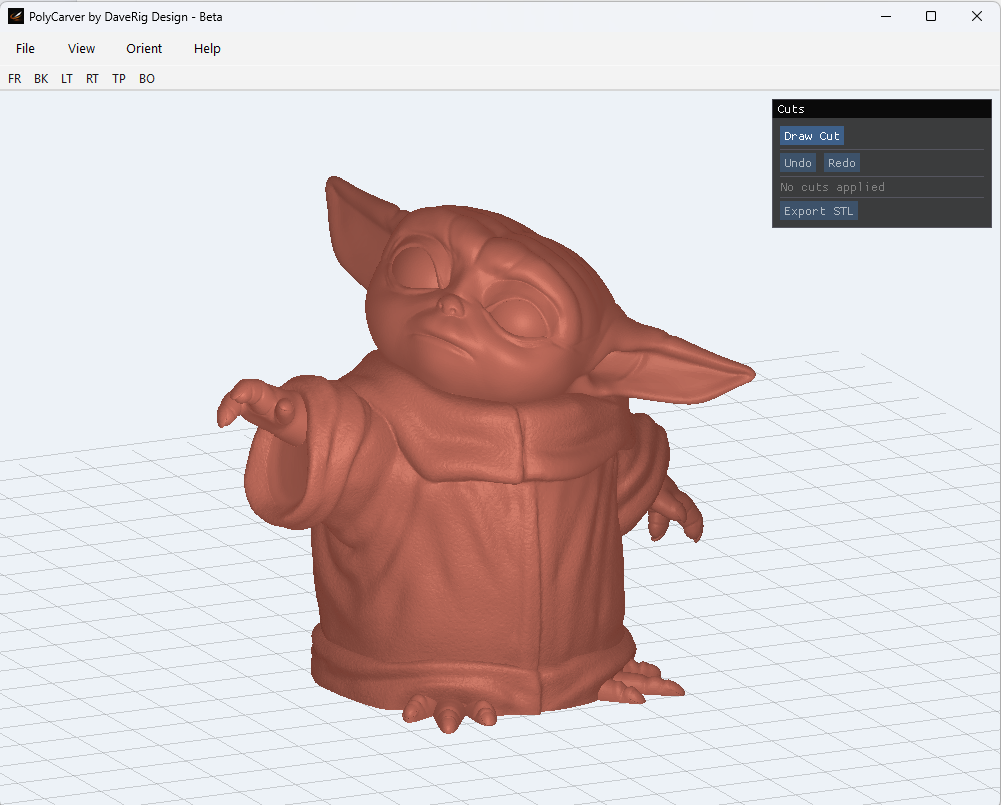
When you load a mesh, it appears in the red clay material. A Cuts panel will appear in the top-right corner. This is where you control the cutting process.
Click Draw Cut to begin.
Once draw mode is active, click in the viewport to place spline points. Click and release to place a simple point, or click and drag to create a point with Bezier handles.
You can continue placing points to shape your cut. Select a point or handle to adjust the curve. To delete a point, select it and press D.
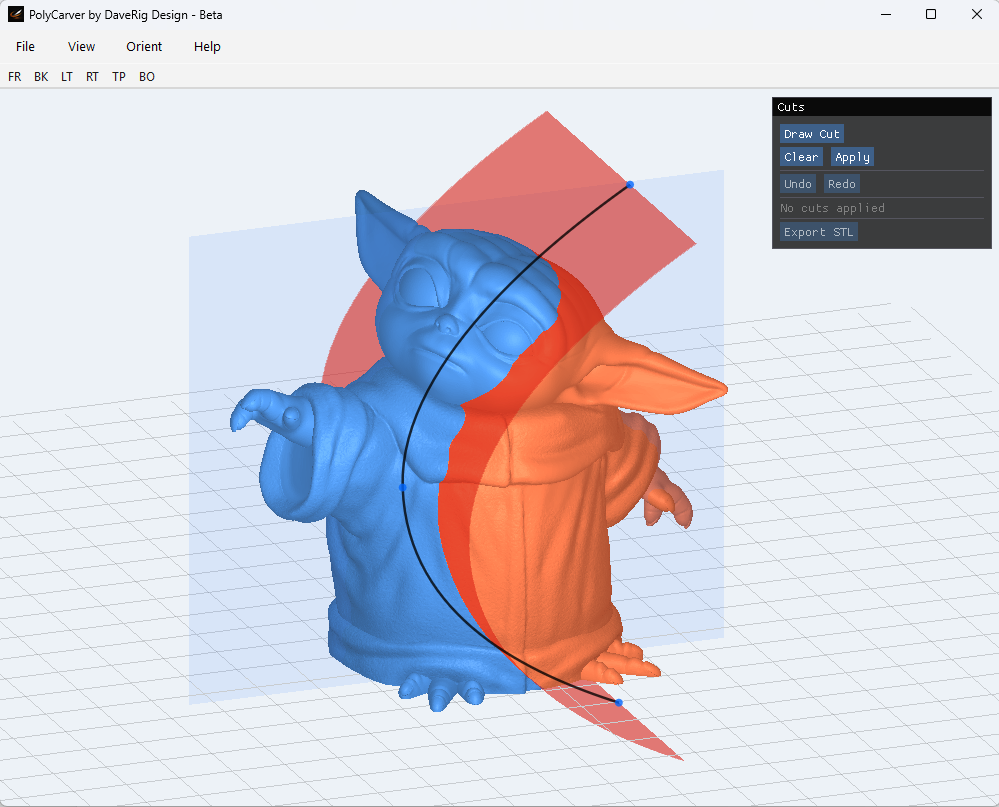
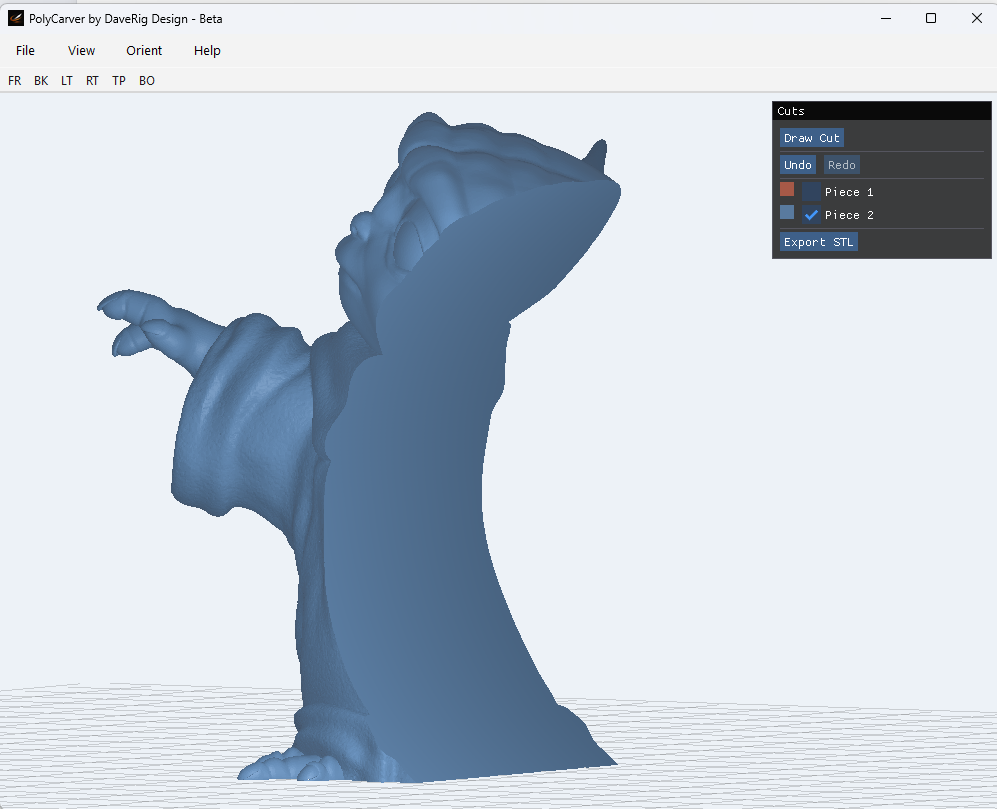
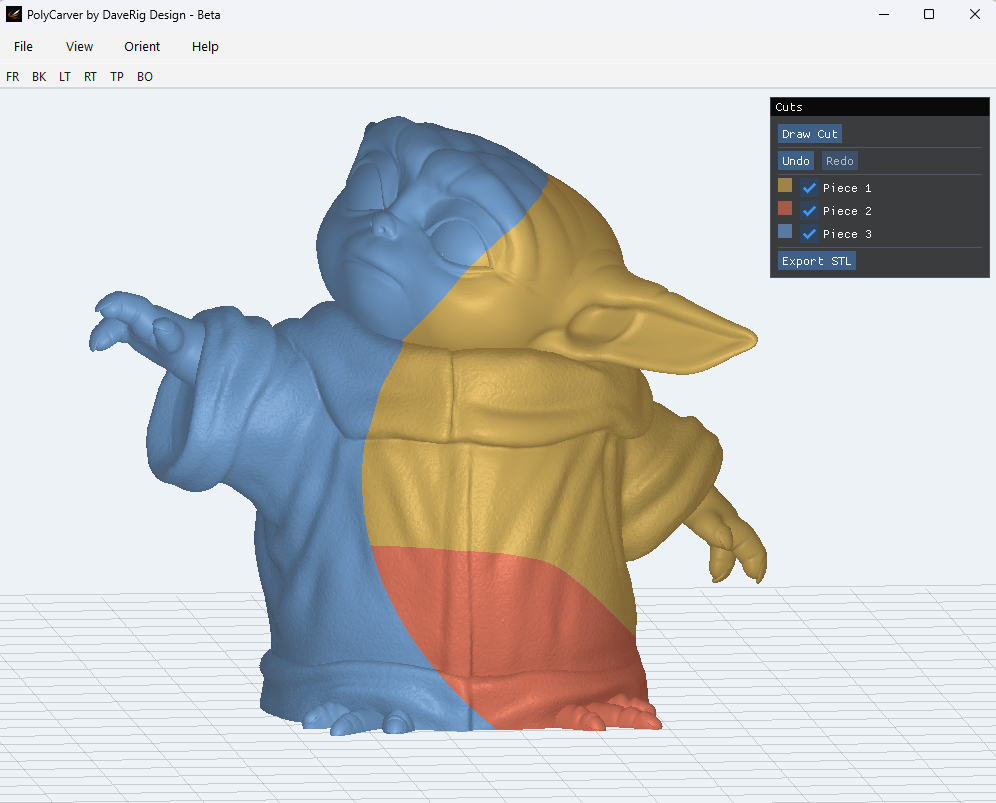
After the cut is applied, each new piece is assigned a different color and listed in the Cuts panel.
Use the checkmark beside each piece to show or hide it. It is a good idea to inspect the result before exporting, especially in the beta. Some complex meshes may not cap perfectly.